Kit (formerly ConvertKit) is an email marketing and creator commerce platform. Its data model centres on subscribers, tags, segments, sequences and forms. Automations and email sequences cannot be exported natively. Subscriber data and tags export as CSV.
This guide covers subscriber import, data export, the Kit API and Coefficient for recurring exports to Google Sheets or Excel.
| What data can you import and export from Kit? |
| Kit supports CSV import of subscribers with tags, custom fields and subscriber status. Export covers subscriber lists with all tags and custom fields as CSV. Automations, sequences and broadcasts cannot be exported as data. The Kit API provides full programmatic access to subscribers, tags, segments, forms and broadcast data. Coefficient connects Kit to Google Sheets or Excel for live, auto-refreshing subscriber exports. |
How to import data into Kit
Method 1: CSV subscriber import
- In Kit, go to Subscribers and click Import Subscribers.
- Upload your CSV file. The file must include an Email column as the minimum.
- Map optional columns: First Name, Last Name, tags and custom fields.
- Set the import action: Subscribe (confirms opt-in) or Add without confirming for existing confirmed lists.
- Click Import. Kit processes the file and sends a completion notification.
Format requirements:
- File type: CSV.
- Required field: Email.
- Tags: include a “tags” column with comma-separated tag names. Kit creates new tags automatically.
- Custom fields: use the custom field’s API key (not display name) as the column header. Find API keys in Subscribers > Custom Fields.
- Cannot import: automation enrollment history, email open/click data, form submissions and sequence step history cannot be imported via CSV.
Method 2: Migrate from another platform
To migrate from Substack, Mailchimp or another email platform, export your subscriber list as CSV from the source, clean the data to include Email and any tags, then import into Kit via the subscriber importer. Automations and sequence content must be rebuilt manually in Kit.
Method 3: Kit API
The Kit API supports programmatic creation of subscribers, tags and form subscriptions. Use it for automated list building from e-commerce platforms, continuous sync from a CRM or bulk tag management operations.
How to export data from Kit
Method 1: Subscriber export (CSV)
- Go to Subscribers in Kit.
- Apply filters or select a segment to narrow the subscribers you want.
- Click Export or the download icon. Kit exports all visible subscribers with their tags and custom fields.
- Kit emails a download link when the export is ready.
What the export includes:
- Included: email address, first name, last name, all tags, all custom field values, subscriber status, created date.
- Not included: email engagement history (opens, clicks), automation history, form submission details, sequence step data.
Kit does not support export of automations, sequences or broadcast campaigns as data files.
Method 2: Coefficient for live, scheduled exports
Kit’s native export is a one-time CSV. For creators and marketing teams who need fresh subscriber counts, tag distributions or segment sizes in a spreadsheet regularly, Coefficient automates this.
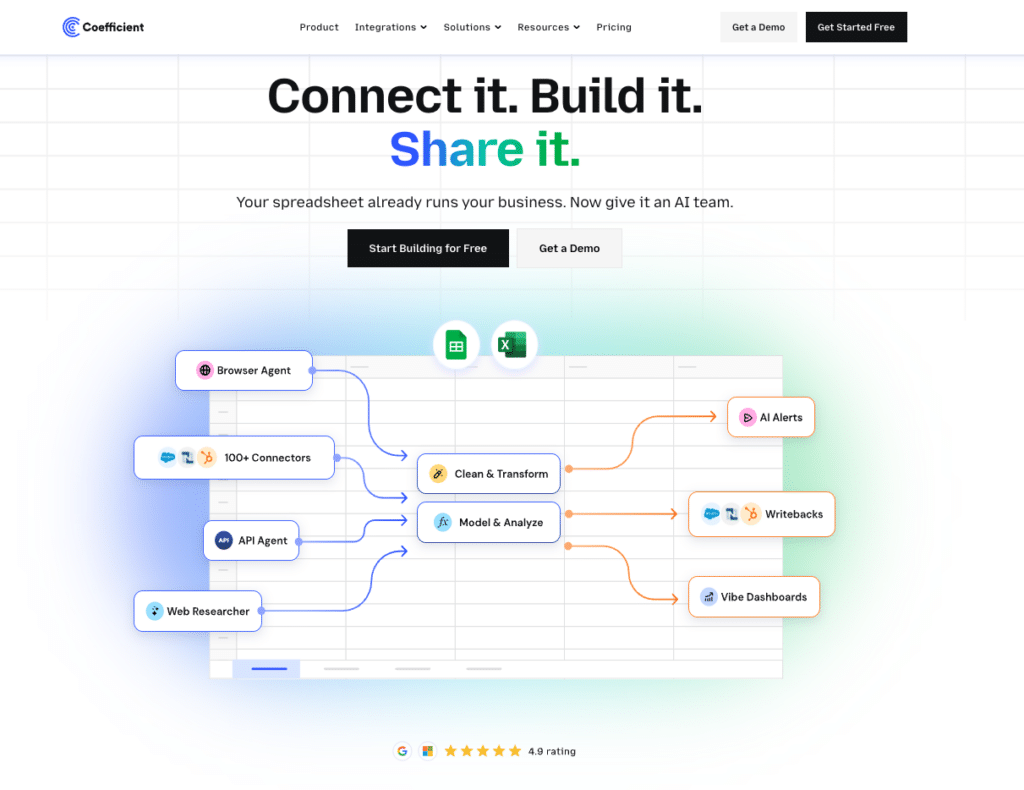
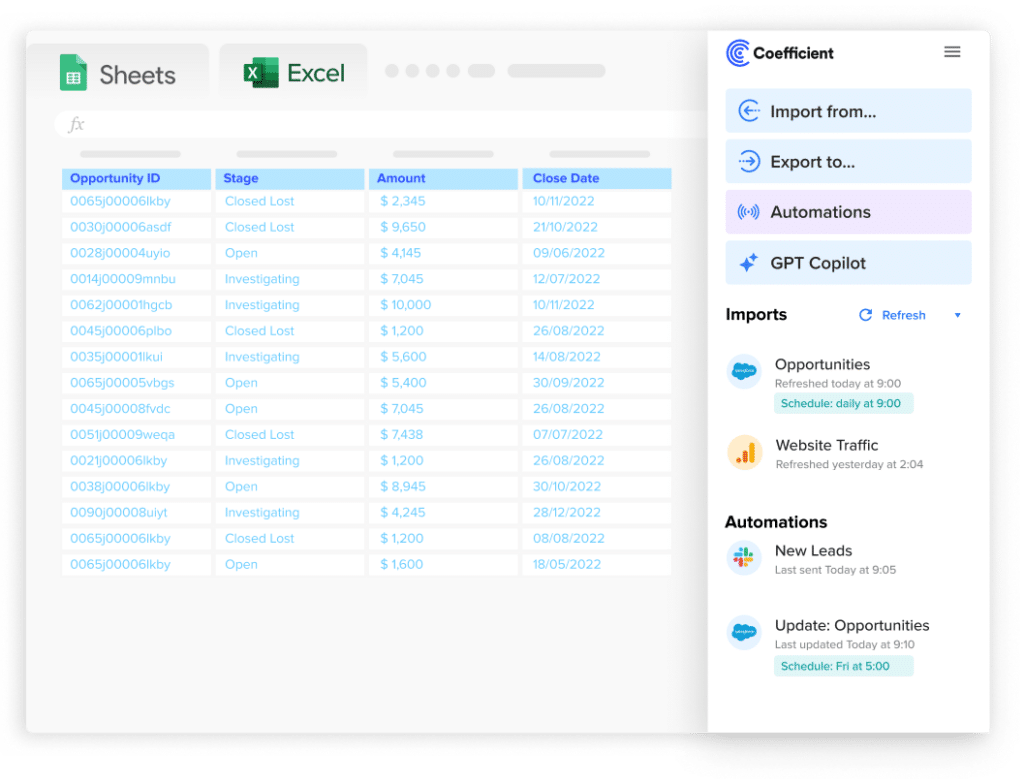
Coefficient connects Kit to Google Sheets or Excel. Subscriber data refreshes automatically.
- Import subscriber records, tags and custom field values with field-level selection and segment filters.
- Set auto-refresh so list health metrics are always current.
- Turn live Kit data into a shareable web dashboard. Coefficient AI dashboards build it in plain English.
How to connect Kit to a spreadsheet with Coefficient:
- Install Coefficient from the Google Workspace Marketplace or Microsoft AppSource.
- Open Coefficient from the Extensions menu in Google Sheets, or the add-in menu in Excel.
- Click Import From and select Kit. When prompted, enter your Kit API secret to complete the connection.
- Select the data type (subscribers, tags, segments), choose fields and apply filters.
- Set a Scheduled Run to refresh data automatically.
Method 3: Kit API for programmatic export
The Kit API provides access to subscriber data, tags, segments and broadcast statistics in JSON format. Use it for full account backups, integrating Kit data with a CRM or data warehouse, or accessing engagement history not available in native CSV export.
Stop exporting data manually. Sync data from your business systems into Google Sheets or Excel with Coefficient and set it on a refresh schedule.
Get Started
Import and export method comparison
| Method | Direction | Data covered | Format | Best for |
|---|---|---|---|---|
| CSV subscriber import | Import | Subscribers, tags, custom fields | CSV | Bulk import, platform migration |
| Kit API (import) | Import | Subscribers, tags, form subscriptions | JSON | Automated list building, continuous sync |
| Subscriber export (CSV) | Export | Subscribers, tags, custom fields, status | CSV | One-time list backup or migration export |
| Coefficient | Export from Kit | Subscribers, tags, segments | Live sync to Sheets or Excel | Recurring exports, live list reporting |
| Kit API (export) | Export | All subscriber data, tags, broadcast stats | JSON | Full backups, data warehouse ingestion |
FAQ
Can you export Kit automations and sequences?
No. Kit does not support native export of automations, sequences or email templates as data files. These must be rebuilt manually if migrating to another platform.
How do you export Kit subscribers including tags and segments?
Go to Subscribers in Kit, apply a segment filter if needed and click Export. The CSV includes all tags and custom field values. For segment-specific exports, apply the segment filter before clicking Export.
Can you export Kit data to Google Sheets automatically?
Yes, with Coefficient. Connect Kit, select your subscriber data and set a refresh schedule. List data updates in Google Sheets or Excel automatically.
What are the CSV format requirements for Kit import?
The CSV must include an Email column. Other supported columns include First Name, Last Name, tags (comma-separated in one column) and custom fields (using the custom field API key as the column header, not the display name). Kit creates new tags automatically if they do not exist.
How do you migrate from Substack to Kit?
Export your Substack subscriber list as CSV from Substack’s settings (includes email and subscription status). Import it into Kit via Subscribers > Import Subscribers. Map the email column to Email and set the import action to “Add without confirming” for already-confirmed subscribers. Your content and posts must be migrated separately.
If you need Kit subscriber data refreshed automatically in a spreadsheet for list health tracking or campaign planning, try Coefficient free and connect Kit in a few clicks.