Bringing your Paymo Projects data into Google Sheets helps you manage your project portfolio, track project status, and analyze project performance in one central location.
Instead of manual data work, create a live connection that updates automatically.
This guide shows you exactly how to import your Paymo Projects data into Google Sheets with Coefficient.
TLDR
-
Step 1:
Step 1. Install the Coefficient Google Sheets add-on and connect your Paymo account.
-
Step 2:
Step 2. Choose Import from Objects and select the Projects object.
-
Step 3:
Step 3. Pick the fields you need, add filters if you want, and import the data into your Sheet.
-
Step 4:
Step 4. Set up auto-refresh to keep your Projects data updated automatically.
block:tutorial
Step-by-Step Guide: Importing Your Paymo Data
Getting your Paymo Projects data into Google Sheets is simple with Coefficient. Just follow these steps:
step:1
step-title:Install and Connect Coefficient
First, add Coefficient to your Google Sheet.
Open Google Sheets. Go to Extensions > Add-ons > Get add-ons. Search for “Coefficient” and install it from the Google Workspace Marketplace.
After installing, open Coefficient from Extensions > Coefficient > Launch.
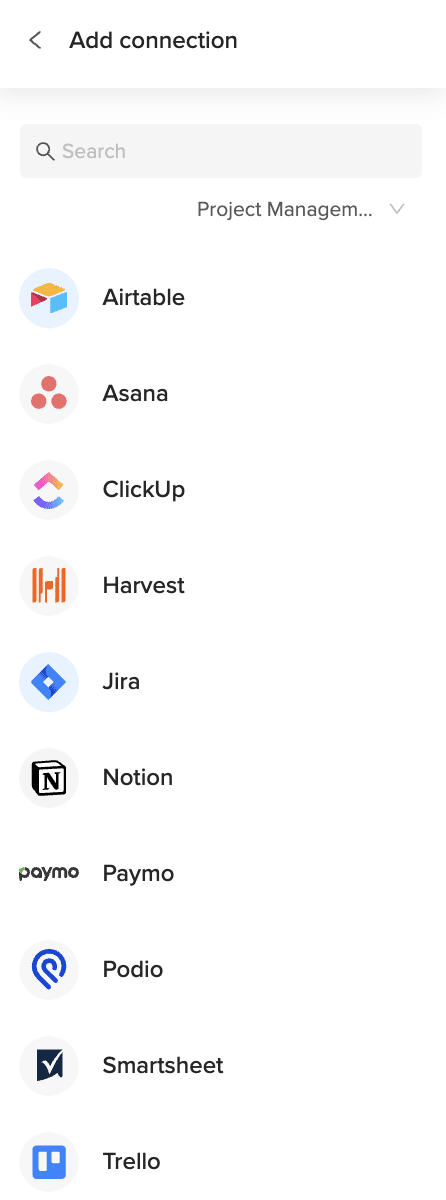
In the Coefficient sidebar, find and click on the Paymo connector to start the connection. Log into your Paymo account when prompted to authorize Coefficient.

step:2
step-title:Import Your Projects Data
Once connected, you can pull your data.
In the Coefficient sidebar, click the “Import from” button and select “Paymo Objects”. Choose “Projects” from the list of available data objects.
step:3
step-title:Configure and Import
Now, decide exactly what data you want.
Select the specific fields (columns) you need for your analysis. You can also apply filters or sort the data directly in Coefficient before you import.
When everything is set, click the “Import” button. Your Paymo Projects data will load straight into your Google Sheet.

step:4
step-title:Set Up Auto-Refresh (Optional)
Keep your Projects data current automatically.
Find your import in the Coefficient sidebar. Click the refresh icon’s dropdown menu and choose “Schedule”.
Pick how often you want the data to update – for example, daily or hourly. This keeps your spreadsheet fresh without manual work.
Available Paymo Objects
- Client Contacts
- Users
- Projects
- Project Statuses
- Workflows
- Task Lists
- Tasks
- Time Entries
- Invoices
- Invoice Templates
- Invoice Payments
- Estimates
How to Import Project Statuses Data from Paymo into Google Sheets
Bringing your Paymo Project Statuses data into Google Sheets helps you understand project progress stages, track status changes, and analyze workflow bottlenecks.
Get this status data into your Sheet automatically, simplifying project tracking.
This guide shows you exactly how to import your Paymo Project Statuses data into Google Sheets with Coefficient.
TLDR
-
Step 1:
Step 1. Install the Coefficient Google Sheets add-on and connect your Paymo account.
-
Step 2:
Step 2. Choose Import from Objects and select the Project Statuses object.
-
Step 3:
Step 3. Pick the fields you need, add filters if you want, and import the data into your Sheet.
-
Step 4:
Step 4. Set up auto-refresh to keep your Project Statuses data updated automatically.
block:tutorial
Step-by-Step Guide: Importing Your Paymo Data
Getting your Paymo Project Statuses data into Google Sheets is simple with Coefficient. Just follow these steps:
step:1
step-title:Install and Connect Coefficient
First, add Coefficient to your Google Sheet.
Open Google Sheets. Go to Extensions > Add-ons > Get add-ons. Search for “Coefficient” and install it from the Google Workspace Marketplace.
After installing, open Coefficient from Extensions > Coefficient > Launch.
In the Coefficient sidebar, find and click on the Paymo connector to start the connection. Log into your Paymo account when prompted to authorize Coefficient.
step:2
step-title:Import Your Project Statuses Data
Once connected, you can pull your data.
In the Coefficient sidebar, click the “Import from” button and select “Paymo Objects”. Choose “Project Statuses” from the list of available data objects.
step:3
step-title:Configure and Import
Now, decide exactly what data you want.
Select the specific fields (columns) you need for your analysis. You can also apply filters or sort the data directly in Coefficient before you import.
When everything is set, click the “Import” button. Your Paymo Project Statuses data will load straight into your Google Sheet.
step:4
step-title:Set Up Auto-Refresh (Optional)
Keep your Project Statuses data current automatically.
Find your import in the Coefficient sidebar. Click the refresh icon’s dropdown menu and choose “Schedule”.
Pick how often you want the data to update – for example, daily or hourly. This keeps your spreadsheet fresh without manual work.
Available Paymo Objects
- Client Contacts
- Users
- Projects
- Project Statuses
- Workflows
- Task Lists
- Tasks
- Time Entries
- Invoices
- Invoice Templates
- Invoice Payments
- Estimates
How to Import Invoices Data from Paymo into Google Sheets
Bringing your Paymo Invoices data into Google Sheets helps you manage client billing, track invoice status, and analyze payment collection directly in your spreadsheet.
Get this invoice data into your Sheet automatically, simplifying financial tracking.
This guide shows you exactly how to import your Paymo Invoices data into Google Sheets with Coefficient.
TLDR
-
Step 1:
Step 1. Install the Coefficient Google Sheets add-on and connect your Paymo account.
-
Step 2:
Step 2. Choose Import from Objects and select the Invoices object.
-
Step 3:
Step 3. Pick the fields you need, add filters if you want, and import the data into your Sheet.
-
Step 4:
Step 4. Set up auto-refresh to keep your Invoices data updated automatically.
block:tutorial
Step-by-Step Guide: Importing Your Paymo Data
Getting your Paymo Invoices data into Google Sheets is simple with Coefficient. Just follow these steps:
step:1
step-title:Install and Connect Coefficient
First, add Coefficient to your Google Sheet.
Open Google Sheets. Go to Extensions > Add-ons > Get add-ons. Search for “Coefficient” and install it from the Google Workspace Marketplace.
After installing, open Coefficient from Extensions > Coefficient > Launch.
In the Coefficient sidebar, find and click on the Paymo connector to start the connection. Log into your Paymo account when prompted to authorize Coefficient.
step:2
step-title:Import Your Invoices Data
Once connected, you can pull your data.
In the Coefficient sidebar, click the “Import from” button and select “Paymo Objects”. Choose “Invoices” from the list of available data objects.
step:3
step-title:Configure and Import
Now, decide exactly what data you want.
Select the specific fields (columns) you need for your analysis. You can also apply filters or sort the data directly in Coefficient before you import.
When everything is set, click the “Import” button. Your Paymo Invoices data will load straight into your Google Sheet.
step:4
step-title:Set Up Auto-Refresh (Optional)
Keep your Invoices data current automatically.
Find your import in the Coefficient sidebar. Click the refresh icon’s dropdown menu and choose “Schedule”.
Pick how often you want the data to update – for example, daily or hourly. This keeps your spreadsheet fresh without manual work.
Available Paymo Objects
- Client Contacts
- Users
- Projects
- Project Statuses
- Workflows
- Task Lists
- Tasks
- Time Entries
- Invoices
- Invoice Templates
- Invoice Payments
- Estimates
How to Import Invoice Templates Data from Paymo into Google Sheets
Bringing your Paymo Invoice Templates data into Google Sheets helps you manage your billing template structures, track design elements, and ensure consistency in client invoices.
Get this template data into your Sheet automatically, simplifying template management.
This guide shows you exactly how to import your Paymo Invoice Templates data into Google Sheets with Coefficient.
TLDR
-
Step 1:
Step 1. Install the Coefficient Google Sheets add-on and connect your Paymo account.
-
Step 2:
Step 2. Choose Import from Objects and select the Invoice Templates object.
-
Step 3:
Step 3. Pick the fields you need, add filters if you want, and import the data into your Sheet.
-
Step 4:
Step 4. Set up auto-refresh to keep your Invoice Templates data updated automatically.
block:tutorial
Step-by-Step Guide: Importing Your Paymo Data
Getting your Paymo Invoice Templates data into Google Sheets is simple with Coefficient. Just follow these steps:
step:1
step-title:Install and Connect Coefficient
First, add Coefficient to your Google Sheet.
Open Google Sheets. Go to Extensions > Add-ons > Get add-ons. Search for “Coefficient” and install it from the Google Workspace Marketplace.
After installing, open Coefficient from Extensions > Coefficient > Launch.
In the Coefficient sidebar, find and click on the Paymo connector to start the connection. Log into your Paymo account when prompted to authorize Coefficient.
step:2
step-title:Import Your Invoice Templates Data
Once connected, you can pull your data.
In the Coefficient sidebar, click the “Import from” button and select “Paymo Objects”. Choose “Invoice Templates” from the list of available data objects.
step:3
step-title:Configure and Import
Now, decide exactly what data you want.
Select the specific fields (columns) you need for your analysis. You can also apply filters or sort the data directly in Coefficient before you import.
When everything is set, click the “Import” button. Your Paymo Invoice Templates data will load straight into your Google Sheet.
step:4
step-title:Set Up Auto-Refresh (Optional)
Keep your Invoice Templates data current automatically.
Find your import in the Coefficient sidebar. Click the refresh icon’s dropdown menu and choose “Schedule”.
Pick how often you want the data to update – for example, daily or hourly. This keeps your spreadsheet fresh without manual work.
Available Paymo Objects
- Client Contacts
- Users
- Projects
- Project Statuses
- Workflows
- Task Lists
- Tasks
- Time Entries
- Invoices
- Invoice Templates
- Invoice Payments
- Estimates
How to Import Invoice Payments Data from Paymo into Google Sheets
Bringing your Paymo Invoice Payments data into Google Sheets helps you track payment collection, monitor payment dates and amounts, and reconcile payments with invoices.
Get this payment data into your Sheet automatically, simplifying payment tracking.
This guide shows you exactly how to import your Paymo Invoice Payments data into Google Sheets with Coefficient.
TLDR
-
Step 1:
Step 1. Install the Coefficient Google Sheets add-on and connect your Paymo account.
-
Step 2:
Step 2. Choose Import from Objects and select the Invoice Payments object.
-
Step 3:
Step 3. Pick the fields you need, add filters if you want, and import the data into your Sheet.
-
Step 4:
Step 4. Set up auto-refresh to keep your Invoice Payments data updated automatically.
block:tutorial
Step-by-Step Guide: Importing Your Paymo Data
Getting your Paymo Invoice Payments data into Google Sheets is simple with Coefficient. Just follow these steps:
step:1
step-title:Install and Connect Coefficient
First, add Coefficient to your Google Sheet.
Open Google Sheets. Go to Extensions > Add-ons > Get add-ons. Search for “Coefficient” and install it from the Google Workspace Marketplace.
After installing, open Coefficient from Extensions > Coefficient > Launch.
In the Coefficient sidebar, find and click on the Paymo connector to start the connection. Log into your Paymo account when prompted to authorize Coefficient.
step:2
step-title:Import Your Invoice Payments Data
Once connected, you can pull your data.
In the Coefficient sidebar, click the “Import from” button and select “Paymo Objects”. Choose “Invoice Payments” from the list of available data objects.
step:3
step-title:Configure and Import
Now, decide exactly what data you want.
Select the specific fields (columns) you need for your analysis. You can also apply filters or sort the data directly in Coefficient before you import.
When everything is set, click the “Import” button. Your Paymo Invoice Payments data will load straight into your Google Sheet.
step:4
step-title:Set Up Auto-Refresh (Optional)
Keep your Invoice Payments data current automatically.
Find your import in the Coefficient sidebar. Click the refresh icon’s dropdown menu and choose “Schedule”.
Pick how often you want the data to update – for example, daily or hourly. This keeps your spreadsheet fresh without manual work.
Available Paymo Objects
- Client Contacts
- Users
- Projects
- Project Statuses
- Workflows
- Task Lists
- Tasks
- Time Entries
- Invoices
- Invoice Templates
- Invoice Payments
- Estimates
How to Import Files Data from Paymo into Google Sheets
Bringing your Paymo Files data into Google Sheets helps you track project files, manage attachments related to tasks and projects, and organize your project assets.
Get this file data into your Sheet automatically, simplifying file management.
This guide shows you exactly how to import your Paymo Files data into Google Sheets with Coefficient.
TLDR
-
Step 1:
Step 1. Install the Coefficient Google Sheets add-on and connect your Paymo account.
-
Step 2:
Step 2. Choose Import from Objects and select the Files object.
-
Step 3:
Step 3. Pick the fields you need, add filters if you want, and import the data into your Sheet.
-
Step 4:
Step 4. Set up auto-refresh to keep your Files data updated automatically.
block:tutorial
Step-by-Step Guide: Importing Your Paymo Data
Getting your Paymo Files data into Google Sheets is simple with Coefficient. Just follow these steps:
step:1
step-title:Install and Connect Coefficient
First, add Coefficient to your Google Sheet.
Open Google Sheets. Go to Extensions > Add-ons > Get add-ons. Search for “Coefficient” and install it from the Google Workspace Marketplace.
After installing, open Coefficient from Extensions > Coefficient > Launch.
In the Coefficient sidebar, find and click on the Paymo connector to start the connection. Log into your Paymo account when prompted to authorize Coefficient.
step:2
step-title:Import Your Files Data
Once connected, you can pull your data.
In the Coefficient sidebar, click the “Import from” button and select “Paymo Objects”. Choose “Files” from the list of available data objects.
step:3
step-title:Configure and Import
Now, decide exactly what data you want.
Select the specific fields (columns) you need for your analysis. You can also apply filters or sort the data directly in Coefficient before you import.
When everything is set, click the “Import” button. Your Paymo Files data will load straight into your Google Sheet.
step:4
step-title:Set Up Auto-Refresh (Optional)
Keep your Files data current automatically.
Find your import in the Coefficient sidebar. Click the refresh icon’s dropdown menu and choose “Schedule”.
Pick how often you want the data to update – for example, daily or hourly. This keeps your spreadsheet fresh without manual work.
Available Paymo Objects
- Client Contacts
- Users
- Projects
- Project Statuses
- Workflows
- Task Lists
- Tasks
- Time Entries
- Invoices
- Invoice Templates
- Invoice Payments
- Estimates
How to Import Estimates Data from Paymo into Google Sheets
Bringing your Paymo Estimates data into Google Sheets helps you manage project quotes, track estimate status (sent, accepted, rejected), and analyze your sales pipeline.
Get this estimate data into your Sheet automatically, simplifying quote tracking.
This guide shows you exactly how to import your Paymo Estimates data into Google Sheets with Coefficient.
TLDR
-
Step 1:
Step 1. Install the Coefficient Google Sheets add-on and connect your Paymo account.
-
Step 2:
Step 2. Choose Import from Objects and select the Estimates object.
-
Step 3:
Step 3. Pick the fields you need, add filters if you want, and import the data into your Sheet.
-
Step 4:
Step 4. Set up auto-refresh to keep your Estimates data updated automatically.
block:tutorial
Step-by-Step Guide: Importing Your Paymo Data
Getting your Paymo Estimates data into Google Sheets is simple with Coefficient. Just follow these steps:
step:1
step-title:Install and Connect Coefficient
First, add Coefficient to your Google Sheet.
Open Google Sheets. Go to Extensions > Add-ons > Get add-ons. Search for “Coefficient” and install it from the Google Workspace Marketplace.
After installing, open Coefficient from Extensions > Coefficient > Launch.
In the Coefficient sidebar, find and click on the Paymo connector to start the connection. Log into your Paymo account when prompted to authorize Coefficient.
step:2
step-title:Import Your Estimates Data
Once connected, you can pull your data.
In the Coefficient sidebar, click the “Import from” button and select “Paymo Objects”. Choose “Estimates” from the list of available data objects.
step:3
step-title:Configure and Import
Now, decide exactly what data you want.
Select the specific fields (columns) you need for your analysis. You can also apply filters or sort the data directly in Coefficient before you import.
When everything is set, click the “Import” button. Your Paymo Estimates data will load straight into your Google Sheet.
step:4
step-title:Set Up Auto-Refresh (Optional)
Keep your Estimates data current automatically.
Find your import in the Coefficient sidebar. Click the refresh icon’s dropdown menu and choose “Schedule”.
Pick how often you want the data to update – for example, daily or hourly. This keeps your spreadsheet fresh without manual work.
Available Paymo Objects
- Client Contacts
- Users
- Projects
- Project Statuses
- Workflows
- Task Lists
- Tasks
- Time Entries
- Invoices
- Invoice Templates
- Invoice Payments
- Estimates
How to Import Estimate Templates Data from Paymo into Google Sheets
Bringing your Paymo Estimate Templates data into Google Sheets helps you manage your quoting template structures, track design elements, and ensure consistency in client estimates.
Get this template data into your Sheet automatically, simplifying template management.
This guide shows you exactly how to import your Paymo Estimate Templates data into Google Sheets with Coefficient.
TLDR
-
Step 1:
Step 1. Install the Coefficient Google Sheets add-on and connect your Paymo account.
-
Step 2:
Step 2. Choose Import from Objects and select the Estimate Templates object.
-
Step 3:
Step 3. Pick the fields you need, add filters if you want, and import the data into your Sheet.
-
Step 4:
Step 4. Set up auto-refresh to keep your Estimate Templates data updated automatically.
block:tutorial
Step-by-Step Guide: Importing Your Paymo Data
Getting your Paymo Estimate Templates data into Google Sheets is simple with Coefficient. Just follow these steps:
step:1
step-title:Install and Connect Coefficient
First, add Coefficient to your Google Sheet.
Open Google Sheets. Go to Extensions > Add-ons > Get add-ons. Search for “Coefficient” and install it from the Google Workspace Marketplace.
After installing, open Coefficient from Extensions > Coefficient > Launch.
In the Coefficient sidebar, find and click on the Paymo connector to start the connection. Log into your Paymo account when prompted to authorize Coefficient.
step:2
step-title:Import Your Estimate Templates Data
Once connected, you can pull your data.
In the Coefficient sidebar, click the “Import from” button and select “Paymo Objects”. Choose “Estimate Templates” from the list of available data objects.
step:3
step-title:Configure and Import
Now, decide exactly what data you want.
Select the specific fields (columns) you need for your analysis. You can also apply filters or sort the data directly in Coefficient before you import.
When everything is set, click the “Import” button. Your Paymo Estimate Templates data will load straight into your Google Sheet.
step:4
step-title:Set Up Auto-Refresh (Optional)
Keep your Estimate Templates data current automatically.
Find your import in the Coefficient sidebar. Click the refresh icon’s dropdown menu and choose “Schedule”.
Pick how often you want the data to update – for example, daily or hourly. This keeps your spreadsheet fresh without manual work.
Available Paymo Objects
- Client Contacts
- Users
- Projects
- Project Statuses
- Workflows
- Task Lists
- Tasks
- Time Entries
- Invoices
- Invoice Templates
- Invoice Payments
- Estimates
How to Import Discussions Data from Paymo into Google Sheets
Bringing your Paymo Discussions data into Google Sheets helps you track project communication, monitor conversations related to tasks and projects, and keep records of team discussions.
Get this communication data into your Sheet automatically, simplifying discussion tracking.
This guide shows you exactly how to import your Paymo Discussions data into Google Sheets with Coefficient.
TLDR
-
Step 1:
Step 1. Install the Coefficient Google Sheets add-on and connect your Paymo account.
-
Step 2:
Step 2. Choose Import from Objects and select the Discussions object.
-
Step 3:
Step 3. Pick the fields you need, add filters if you want, and import the data into your Sheet.
-
Step 4:
Step 4. Set up auto-refresh to keep your Discussions data updated automatically.
block:tutorial
Step-by-Step Guide: Importing Your Paymo Data
Getting your Paymo Discussions data into Google Sheets is simple with Coefficient. Just follow these steps:
step:1
step-title:Install and Connect Coefficient
First, add Coefficient to your Google Sheet.
Open Google Sheets. Go to Extensions > Add-ons > Get add-ons. Search for “Coefficient” and install it from the Google Workspace Marketplace.
After installing, open Coefficient from Extensions > Coefficient > Launch.
In the Coefficient sidebar, find and click on the Paymo connector to start the connection. Log into your Paymo account when prompted to authorize Coefficient.
step:2
step-title:Import Your Discussions Data
Once connected, you can pull your data.
In the Coefficient sidebar, click the “Import from” button and select “Paymo Objects”. Choose “Discussions” from the list of available data objects.
step:3
step-title:Configure and Import
Now, decide exactly what data you want.
Select the specific fields (columns) you need for your analysis. You can also apply filters or sort the data directly in Coefficient before you import.
When everything is set, click the “Import” button. Your Paymo Discussions data will load straight into your Google Sheet.
step:4
step-title:Set Up Auto-Refresh (Optional)
Keep your Discussions data current automatically.
Find your import in the Coefficient sidebar. Click the refresh icon’s dropdown menu and choose “Schedule”.
Pick how often you want the data to update – for example, daily or hourly. This keeps your spreadsheet fresh without manual work.
Available Paymo Objects
- Client Contacts
- Users
- Projects
- Project Statuses
- Workflows
- Task Lists
- Tasks
- Time Entries
- Invoices
- Invoice Templates
- Invoice Payments
- Estimates
How to Import Client Contacts Data from Paymo into Google Sheets
Bringing your Paymo Client Contacts data into Google Sheets helps you manage client information, track communication details, and ensure you have the right contact information readily available.
Instead of manual data entry, create a live link that automatically updates.
This guide shows you exactly how to import your Paymo Client Contacts data into Google Sheets with Coefficient.
TLDR
-
Step 1:
Step 1. Install the Coefficient Google Sheets add-on and connect your Paymo account.
-
Step 2:
Step 2. Choose Import from Objects and select the Client Contacts object.
-
Step 3:
Step 3. Pick the fields you need, add filters if you want, and import the data into your Sheet.
-
Step 4:
Step 4. Set up auto-refresh to keep your Client Contacts data updated automatically.
block:tutorial
Step-by-Step Guide: Importing Your Paymo Data
Getting your Paymo Client Contacts data into Google Sheets is simple with Coefficient. Just follow these steps:
step:1
step-title:Install and Connect Coefficient
First, add Coefficient to your Google Sheet.
Open Google Sheets. Go to Extensions > Add-ons > Get add-ons. Search for “Coefficient” and install it from the Google Workspace Marketplace.
After installing, open Coefficient from Extensions > Coefficient > Launch.
In the Coefficient sidebar, find and click on the Paymo connector to start the connection. Log into your Paymo account when prompted to authorize Coefficient.
step:2
step-title:Import Your Client Contacts Data
Once connected, you can pull your data.
In the Coefficient sidebar, click the “Import from” button and select “Paymo Objects”. Choose “Client Contacts” from the list of available data objects.
step:3
step-title:Configure and Import
Now, decide exactly what data you want.
Select the specific fields (columns) you need for your analysis. You can also apply filters or sort the data directly in Coefficient before you import.
When everything is set, click the “Import” button. Your Paymo Client Contacts data will load straight into your Google Sheet.
step:4
step-title:Set Up Auto-Refresh (Optional)
Keep your Client Contacts data current automatically.
Find your import in the Coefficient sidebar. Click the refresh icon’s dropdown menu and choose “Schedule”.
Pick how often you want the data to update – for example, daily or hourly. This keeps your spreadsheet fresh without manual work.
Available Paymo Objects
- Client Contacts
- Users
- Projects
- Project Statuses
- Workflows
- Task Lists
- Tasks
- Time Entries
- Invoices
- Invoice Templates
- Invoice Payments
- Estimates