Importing Tax Details from Sage Intacct into Excel gives you live access to tax rate and liability information.
This tutorial covers connecting Coefficient, importing your Tax Details object, and automating refresh.
TLDR
-
Step 1:
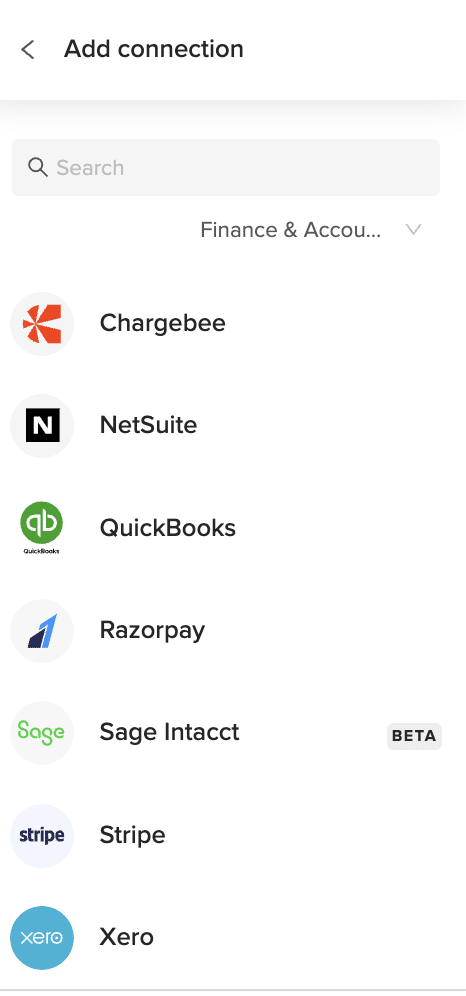
Install Coefficient, connect Sage Intacct.
-
Step 2:
Select “Import from Objects” → “Tax Details.”
-
Step 3:
Click “Import,” verify fields.
-
Step 4:
Enable auto-refresh for real-time tax data.
Step-by-Step Guide

What Sage Intacct Data is Imported?
- Journal Entries
- Payments
- Tax Details
- Vendors
- ACCOUNTS PAYABLE
How to Import Users Data from Sage Intacct into Excel
Importing Users from Sage Intacct into Excel lets you maintain an up-to-date list of system users and their details.
This guide covers connecting Coefficient, importing your Users object, and automating refresh.
TLDR
-
Step 1:
Install Coefficient, connect Sage Intacct.
-
Step 2:
Select “Import from Objects” → “Users.”
-
Step 3:
Click “Import,” verify fields.
-
Step 4:
Enable auto-refresh for live user data.
Step-by-Step Guide
Complete Sage Intacct Object List
Bills
- Deposits
- Fund Transfers
- Journal Entries
- Tax Details
- ACCOUNTS PAYABLE
- Bank Interest Income/Charges
- Charge Payoffs
- Checking Account Reconciliations
- Other Receipts
- Audit History
- Entities
- Offline Jobs
Customers
- Expense Reports
- Invoices
- Payments
- Vendors
- ACCOUNTS RECEIVABLE
- Charge Card Transactions
- Charge Payoff Lines
- Credit Card Charges/Other Fees
- Advanced Audit Trails
- Contacts
- Locations
- Roles
How to Import Vendors Data from Sage Intacct into Excel
Importing Vendors from Sage Intacct into Excel ensures your supplier information is always up to date.
This guide covers connecting Coefficient, importing your Vendors object, and automating refresh.
TLDR
-
Step 1:
Install Coefficient, connect Sage Intacct.
-
Step 2:
Select “Import from Objects” → “Vendors.”
-
Step 3:
Click “Import,” verify fields.
-
Step 4:
Enable auto-refresh for live vendor data.
Step-by-Step Guide
What Sage Intacct Data is Imported?
- Journal Entries
- Payments
- Tax Details
- Vendors
- ACCOUNTS PAYABLE
How to Import Audit History Data from Sage Intacct into Excel
Importing Audit History from Sage Intacct into Excel shows you every modification made across your system.
This guide covers connecting Coefficient, importing Audit History, and automating refresh.
TLDR
-
Step 1:
Install Coefficient, connect Sage Intacct.
-
Step 2:
Select “Import from Objects” → “Audit History.”
-
Step 3:
Click “Import,” verify fields.
-
Step 4:
Enable auto-refresh for real-time updates.
Step-by-Step Guide
Complete Sage Intacct Object List
Bills
- Deposits
- Fund Transfers
- Journal Entries
- Tax Details
- ACCOUNTS PAYABLE
- Bank Interest Income/Charges
- Charge Payoffs
- Checking Account Reconciliations
- Other Receipts
- Audit History
- Entities
- Offline Jobs
Customers
- Expense Reports
- Invoices
- Payments
- Vendors
- ACCOUNTS RECEIVABLE
- Charge Card Transactions
- Charge Payoff Lines
- Credit Card Charges/Other Fees
- Advanced Audit Trails
- Contacts
- Locations
- Roles