Quick answer
Google Sheets webhooks work through Google Apps Script web applications. Write a doPost() function to receive webhook data, deploy it as a web app with public access, then use the generated URL as your webhook endpoint. When external systems send HTTP POST requests to this URL, your script automatically processes the data and updates your spreadsheet.
Apps Script handles the server infrastructure while you focus on data processing logic. The setup involves creating a script, configuring deployment permissions, and implementing proper error handling. Your webhook can parse JSON payloads, validate incoming data, and write information directly to specific cells or rows.
Want to simplify the process? Leverage Google Sheets webhooks with Coefficient.

Prerequisites and requirements
Before building your Google Sheets webhook integration, ensure these essentials are in place.
- Google account access: You need an active Google account with Google Sheets access. The account should have editing privileges for the target spreadsheet.
- Apps Script permissions: Access to Google Apps Script through the “Extensions” > “Apps Script” menu. Most Google accounts include this functionality by default.
- Script deployment rights: Permission to deploy scripts as web apps. This requires editing privileges in the spreadsheet and ability to make the script publicly accessible.
- Webhook endpoint planning: Identify the external application, automation tool (like Make or Zapier), or custom endpoint that will send webhook calls to your sheet.
- Basic JavaScript knowledge: Understanding of JavaScript fundamentals helps customize webhook processing logic. Copy-paste solutions work for simple cases, but custom requirements need scripting skills.
API limits and quotas
Google Sheets API enforces strict limits to protect infrastructure integrity.
- Read requests: Up to 300 requests per minute per project. This covers data retrieval operations like getting cell values or range information.
- Write requests: Limited to 60 requests per minute per project. Write operations include updating cells, adding rows, or modifying spreadsheet structure.
- Size constraints: Google recommends keeping payloads under 2MB for optimal performance. Large data transfers may experience processing delays.
- User and project quotas: Projects face 500 requests per 100 seconds, while individual users hit 100 requests per 100 seconds. The stricter limit applies in practice.
- Rate limiting responses: Exceeding quotas triggers HTTP 429 “Too many requests” errors. Implement exponential backoff strategies to handle these gracefully.
- No daily hard limits: Unlike some APIs, Google Sheets has no set daily caps. Stay within per-minute quotas for unlimited daily usage.
Step-by-step Google Sheets Webhooks setup
Follow this systematic approach to create functional webhook receivers in Google Sheets.
Step 1: Create your Apps Script webhook
Open your target Google Sheet and navigate to “Extensions” > “Apps Script”. This launches the script editor where you’ll build your webhook functionality.
Delete existing code: Remove any default code in the editor. Start with a clean slate for your webhook implementation.
Write your webhook script: Paste this foundational code structure:
javascript
This basic script receives JSON data, parses the payload, and appends new rows with name, email, and message fields. Customize the data fields to match your specific webhook payload structure.
Step 2: Deploy as web application
Click “Deploy” > “New deployment” in the Apps Script editor. This creates a publicly accessible endpoint for your webhook.
Select deployment type: Choose “Web app” from the type dropdown. This enables HTTP request handling through your script.
Configure access permissions: Set “Who has access” to “Anyone” or “Anyone with the link.” Public access is required for external systems to send webhook data.
Copy the web app URL: After clicking “Deploy,” copy the generated URL. This becomes your webhook endpoint that external systems will call.
Save deployment settings: Store the URL securely as you’ll need it for configuring sending applications.
Step 3: Configure external webhook senders
In your sending application or automation platform, set the copied URL as the HTTP POST destination.
Structure your data payload: Ensure posted data matches your script variables. Use JSON format with fields like name, email, message, or whatever your use case requires.
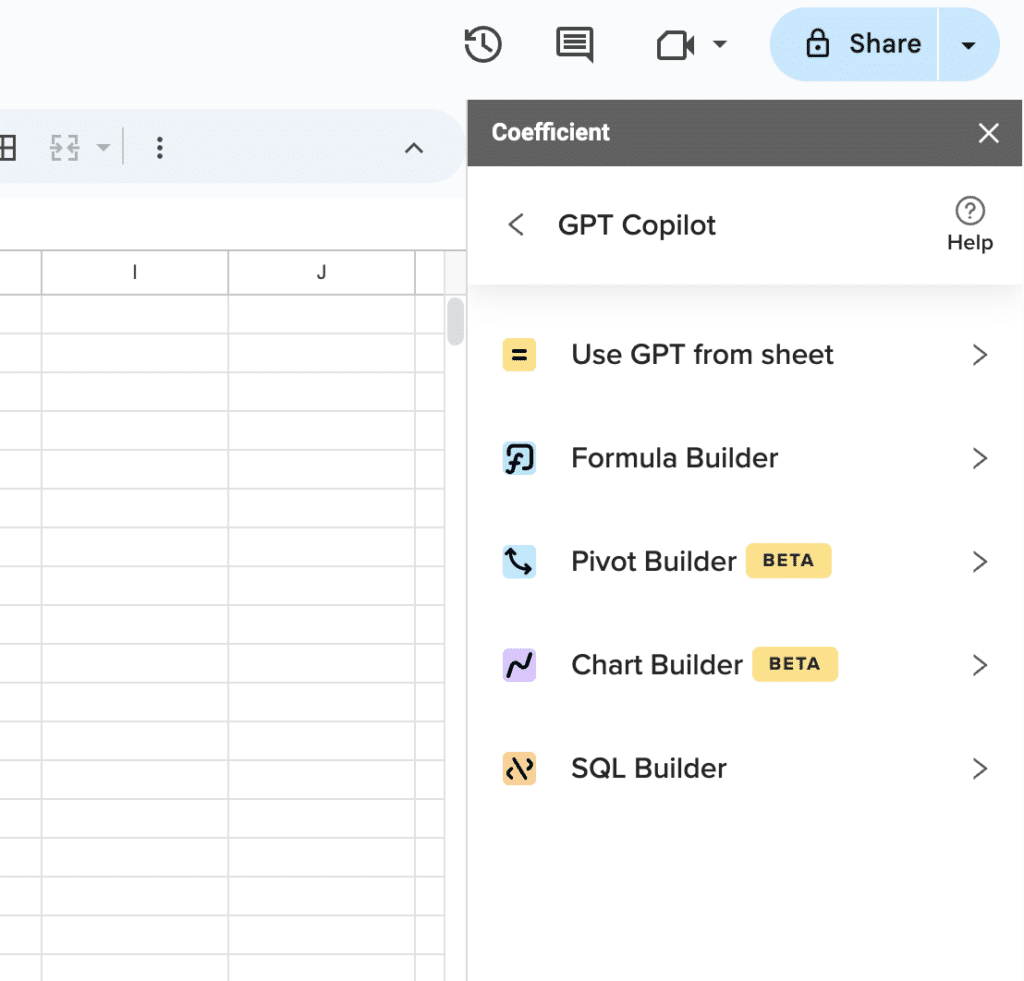
Supercharge your spreadsheets with GPT-powered AI tools for building formulas, charts, pivots, SQL and more. Simple prompts for automatic generation.

Set proper headers: Include “Content-Type: application/json” in your webhook requests. This ensures proper data parsing in your Apps Script function.
Configure retry logic: Implement retry mechanisms in case of temporary failures or rate limiting from Google’s servers.
Step 4: Test your webhook integration
Send a test POST request using tools like Postman or curl to validate your webhook functionality.
Verify data reception: Check your Google Sheet for new rows appearing after sending test data. Each successful POST should create a new row with the parsed information.
Monitor error responses: Watch for error messages in the Apps Script execution log. Common issues include parsing errors, permission problems, or rate limit violations.
Validate data formatting: Ensure incoming data appears correctly formatted in your spreadsheet cells. Adjust parsing logic if data doesn’t display as expected.
Common integration issues
Real-world Google Sheets webhooks implementations encounter several recurring challenges that can disrupt data flow.
Permission and deployment configuration errors
- Access restriction problems: Many webhook failures stem from incorrect deployment permissions. If your web app isn’t set to “Anyone” access, external systems can’t reach your endpoint. Google Apps Script requires public access for webhook functionality, even though this seems counterintuitive for security.
- Script execution permissions: Apps Script may prompt for authorization when first deploying. If you don’t grant proper permissions, the webhook silently fails without processing incoming data. Always complete the authorization flow fully, including accepting any security warnings about external access.
- Domain restrictions: Corporate Google Workspace accounts often restrict script deployments. Administrators may block public web app creation, preventing webhook setup entirely. Contact your IT department if deployment options appear limited or grayed out.
Data parsing and format incompatibilities
- JSON structure mismatches: The most common webhook failure involves mismatched data structures. If your script expects data.email but the sender provides payload.email_address, parsing fails silently. Always log incoming data first to understand the actual payload structure before processing.
- Content-Type header issues: Webhooks sent without proper application/json headers may not parse correctly. Some sending systems default to form-encoded data, which requires different parsing approaches in your doPost function. Check e.postData.type to determine the incoming format.
- Nested object handling: Complex JSON with nested objects or arrays requires careful parsing logic. Simple field extraction works for flat data structures, but deeply nested payloads need recursive processing or specific path navigation.
Rate limiting and performance bottlenecks
- API quota violations: High-frequency webhooks quickly exceed Google’s 60 writes per minute limit. Each appendRow() operation counts against this quota, causing failures during busy periods. According to Google’s documentation, exceeding limits triggers HTTP 429 responses that block subsequent requests.
- Batch processing inefficiencies: Processing webhooks individually wastes API quota. Instead of immediate writes, consider batching multiple webhook calls into single API operations. This approach maximizes throughput while staying within rate limits.
- Response timeout issues: Google Apps Script has execution time limits that can cause webhook timeouts with large data processing. Keep webhook handlers lightweight and defer heavy operations to separate functions triggered by time-based triggers.
Authentication and security vulnerabilities
- Lack of request validation: Basic webhook implementations accept any incoming data without verification. Malicious actors can spam your endpoint or inject harmful data into your spreadsheet. Implement signature validation or API key checks to verify legitimate requests.
- Data exposure risks: Public web app URLs are discoverable and exploitable. Without proper authentication, anyone can send data to your webhook endpoint. Consider implementing simple token-based authentication or request origin validation for sensitive applications.
No-code webhook workflows for Google Sheets or Excel
Skip complex Apps Script development with Coefficient’s seamless webhook integration. This powerful solution eliminates coding requirements while providing enterprise-grade reliability.
Webhooks trigger live data pulls into Coefficient from any system you use. Your external systems tell Coefficient exactly when to refresh data imports. Whether data changes in your CRM, database, or marketing platform, your spreadsheet reacts in real-time.
Instead of waiting for scheduled syncs or manual refreshes, keep dashboards and reports current the moment source data changes. Click the three dots on your import details and copy your webhook URL to get started.
How Coefficient webhooks work
- Import your data: Begin by importing data from any connected source (Salesforce, Google Ads, HubSpot, Notion) into your Google Sheet or Excel file using the Coefficient sidebar.
- Access import settings: In the Coefficient sidebar, locate your desired import under the “Imports” section. This shows all active data connections in your spreadsheet.
- Open the management menu: Click the three-dot menu icon next to your import’s name. This reveals additional configuration options for the data connection.
- Select edit mode: From the dropdown menu, choose the “Edit” option. This opens the import configuration interface.
- Find webhook URL generator: In the “Edit Import” screen, click the three-dot menu icon again. Look for the “Webhook URL” option in the expanded menu.
- Generate your webhook endpoint: Select “Webhook URL” from the menu. This opens a “Refresh with webhook” popup window showing your options.
Choose refresh scope: You have two powerful options:
- Refresh this import only: Copy the provided URL to create a webhook that triggers refresh for only this specific import
- Refresh all imports in sheet: Copy the URL that refreshes every Coefficient import within the entire spreadsheet
Implement in your systems: Paste the copied URL into webhook or outbound messaging settings of your source applications (Salesforce, HubSpot, etc.). When specified events occur in those systems, they automatically trigger data refreshes in your spreadsheet.
Custom development vs Coefficient comparison
| Aspect | Custom Development | Coefficient.io |
| Setup Time | 2-4 weeks | 5 minutes |
| Development Cost | $5,000-$15,000 | $29-$299/month |
| Maintenance | Ongoing dev resources | Fully managed |
| Security | Must implement yourself | Enterprise-grade built-in |
| Monitoring | Build your own | 24/7 automated monitoring |
| Scaling | Handle infrastructure yourself | Auto-scaling included |
| Updates | Maintain API changes | Automatic updates |
Transform your data workflows today with Google Sheets Webhooks
Google Sheets webhooks unlock powerful automation possibilities. Apps Script provides the foundation for custom webhook receivers, while Coefficient offers enterprise-ready solutions without coding complexity.
Choose Apps Script for maximum customization and control. Select Coefficient for rapid deployment and reliable operation. Both approaches eliminate manual data entry and keep your spreadsheets synchronized with external systems.
Ready to automate your data workflows? Get started with Coefficient and connect any system to your spreadsheets in minutes.
Does Google Sheets have webhooks?
Google Sheets doesn’t have built-in webhook functionality, but Google Apps Script provides powerful webhook capabilities. Create web applications with doPost() functions to receive HTTP requests and update spreadsheets automatically. For no-code solutions, Coefficient offers native webhook integration with Google Sheets.
Can I use an API in Google Sheets?
Yes, Google Sheets supports extensive API integration through Google Apps Script. Use UrlFetchApp to make HTTP requests to external APIs, process responses, and populate your spreadsheets. The Google Sheets API also allows external applications to read and write spreadsheet data programmatically.
Can I do macros in Google Sheets?
Google Sheets supports macros through Google Apps Script instead of traditional VBA. Record actions or write custom JavaScript functions to automate repetitive tasks. Macros can manipulate data, format cells, create charts, and integrate with external services beyond basic spreadsheet operations.
How can I automate Google Sheets?
Automate Google Sheets using multiple approaches: Google Apps Script for custom functions and triggers, Google Workspace add-ons for extended functionality, Coefficient for real-time data connections, or automation platforms like Zapier and Make. Choose based on complexity needs and technical expertise.