Most businesses get pricing wrong. They confuse markup with margin, use outdated formulas, and wonder why profits disappear. Excel can fix this—when you know the right formulas.
Whether you’re pricing your first product or managing thousands of SKUs, precise calculations protect your bottom line. This guide shows you the exact Excel formulas that ensure profitable pricing every time.
Understanding cost vs margin calculations
Markup and margin aren’t the same thing. This confusion costs businesses thousands in lost profits.
Markup adds a percentage to your cost:
- Product costs $100
- Apply 50% markup
- Selling price becomes $150
Margin works backward from the selling price:
- Same $100 product
- Want 33.33% margin
- Selling price is still $150
- But the math is different
Here’s why this matters. A 50% markup gives you a 33.33% margin ($50 profit ÷ $150 selling price). Want a 50% margin instead? You need a $200 selling price—that’s a 100% markup.
Get this wrong and you’ll underprice everything.
Excel formulas for cost-margin calculations
Excel handles every pricing scenario. Here are the formulas that matter.
Basic margin-based selling price formula
Know your cost and desired margin? Use this:
=Cost/(1-Margin%)
Example setup:
- Cost in cell A2: $100
- Desired margin in B2: 30%
- Formula in C2: =A2/(1-B2)
- Result: $142.86
This preserves your 30% margin exactly.
Markup-based selling price formula
Working with markup percentages instead:
=Cost*(1+Markup%)
Example:
- Cost in A2: $100
- Markup in B2: 40%
- Formula: =A2*(1+B2)
- Result: $140
Fixed dollar margin formula
Want a specific profit amount?
=Cost+Fixed_Margin_Amount
Simple as =A2+B2 where:
- A2 contains your cost
- B2 contains desired profit dollars
Reverse engineering: finding required margin
Need to know what margin a selling price provides?
=(Selling_Price-Cost)/Selling_Price
In Excel: =(C2-A2)/C2 where C2 is selling price and A2 is cost.
Volume-based tiered pricing
Handle volume discounts with nested IF statements:
=IF(Quantity<=100,Base_Price,IF(Quantity<=500,Base_Price*0.95,Base_Price*0.90))
This automatically adjusts margins for volume customers:
- Orders ≤100 units: full price
- Orders 101-500 units: 5% discount
- Orders >500 units: 10% discount
Advanced Excel techniques for pricing analysis
Basic formulas are just the start. Excel’s advanced features turn pricing into strategic intelligence.
Goal seek for target pricing
Goal Seek answers “what if” questions instantly.
Scenario: You want to drop your selling price from $150 to $120 while keeping a 25% margin. What cost reduction do you need?
Steps:
- Navigate to Data > What-If Analysis > Goal Seek
- Set your selling price cell as target
- Enter desired price ($120)
- Let Excel calculate required cost
Result: Excel determines you need costs to drop from $112.50 to $90.
Data tables for scenario analysis
Create pricing matrices that show every possibility.
Setup:
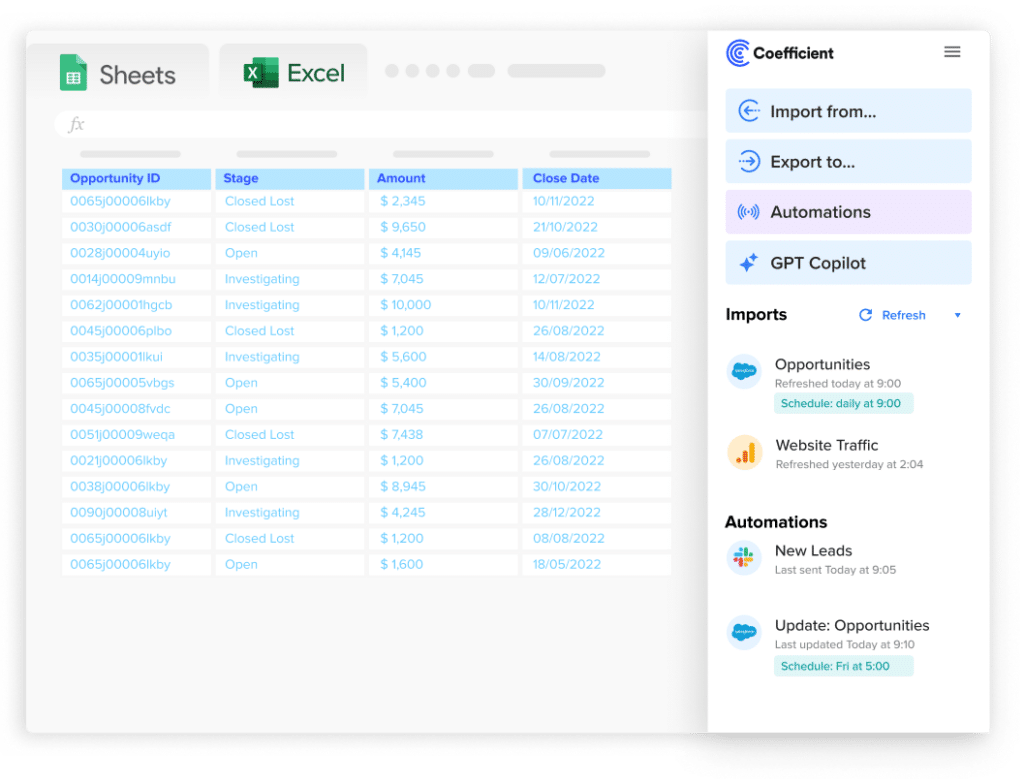
Stop exporting data manually. Sync data from your business systems into Google Sheets or Excel with Coefficient and set it on a refresh schedule.
Get Started
- Row input: Cost scenarios ($90, $100, $110)
- Column input: Margin targets (20%, 25%, 30%)
- Formula cell: =A2/(1-B2)
Result: A matrix showing all selling price combinations. Perfect for strategy meetings.
Conditional formatting for pricing alerts
Make bad pricing decisions impossible to miss:
- Red formatting: Margins below minimum thresholds
- Green highlighting: Optimal margin ranges
- Yellow alerts: Competitive price points needing review
Dynamic pricing models
Adjust prices based on market conditions automatically:
=Base_Cost/(1-Target_Margin)*Seasonality_Factor*Competition_Factor*Demand_Factor
This formula incorporates:
- Market conditions
- Seasonal adjustments
- Competitive positioning
- Demand fluctuations
All automatically.
Common calculation errors to avoid
Even experts make these mistakes. Don’t be one of them.
Confusing markup with margin
The most dangerous error. Always verify which metric your business uses. Apply the correct formula accordingly.
Ignoring rounding impacts
Excel’s default rounding creates pricing inconsistencies.
Solution: Use the ROUND function: =ROUND(A2/(1-B2),2)
This ensures consistent two-decimal pricing.
Failing to update formulas
Copying formulas across rows? Check your cell references.
Key tips:
- Use $ signs to lock specific references
- Allow others to adjust automatically
- Test your formulas before rolling out
Overlooking total cost components
Include everything in your base calculation:
- Direct materials
- Labor costs
- Overhead expenses
- Variable costs
Common mistake: Calculating margins only on material costs while ignoring other expenses.
Static pricing in dynamic markets
Hard-coded values kill profitability. Reference cells containing current costs and market factors instead. Update easily as conditions change.
Get started today
Manual pricing calculations create errors and missed opportunities. Your costs change daily—your pricing should too.
Coefficient connects your business systems directly to Excel. Inventory management, procurement software, and accounting platforms feed real-time data into your pricing models automatically.
The result: Pricing that responds to market changes instantly. No more outdated cost information. No more manual updates. Just dynamic pricing that protects margins and enhances competitiveness.
Ready to automate your pricing intelligence? Get started with Coefficient and transform spreadsheet calculations into strategic advantage.