You want to connect API to Google Sheets to automatically pull live data into your spreadsheets. Instead of manually downloading and importing data every time you need updates, you need a way to refresh your sheets with current information from any API.
This guide shows two methods to connect any API to Google Sheets. You’ll learn the no-code approach and the manual coding method to automate your data imports.
Top 2 methods to connect any API to Google Sheets
Here are the most effective approaches to bring API data into your spreadsheets:
- Coefficient – No-code spreadsheet add-on that transforms any API into a live data source with automatic refreshing
- Google Apps Script – Built-in JavaScript platform for custom API connections with complete control over data processing
#1 Coefficient

Coefficient is a spreadsheet add-on that connects your Google Sheets to live data from 70+ business systems and APIs. Instead of building custom code or managing complex integrations, Coefficient provides a visual interface that turns any REST API into a reliable data pipeline for your spreadsheets.
Why Coefficient eliminates API headaches:
- Zero coding required – Visual setup handles all technical complexity
- Real-time data sync – Automatic refreshes keep sheets current without manual work
- Enterprise security – Direct API-to-sheet connection with no data storage on external servers
- Built for business users – Finance, marketing, and operations teams use it daily without IT support
How to connect any API in 4 simple steps:
Step 1. Install Coefficient and access the Connect Any API feature.
Open your Google Sheet, go to Extensions → Add-ons → Get add-ons, search for “Coefficient” and install it.
Once installed, click the Coefficient sidebar and select “Import from…” then choose “Connect Any API.”

Step 2. Configure your API connection using the visual interface.
Enter your API endpoint URL in the designated field (e.g., https://api.example.com/data). Select your authentication method from the dropdown (Bearer Token, API Key, Username/Password, or None) and add any required credentials or headers.

Step 3. Preview and customize your data import.
Coefficient automatically fetches a sample of your API data and displays the first 100 rows. Select which fields you want to import by checking the relevant columns, and adjust settings like row limits or data source nodes if needed.

Step 4. Import data and set up automation.
Click the “Import” button to pull your API data into the sheet. Optionally, schedule automatic refreshes (hourly, daily, or weekly) so your data stays current without any manual intervention.

Method 2: Google Apps Script
Google Apps Script is Google’s cloud-based JavaScript platform that’s built into every Google Workspace account. It allows you to write custom code that can fetch data from any API and populate your Google Sheets with complete control over formatting, data transformation, and automation logic.
When to choose Apps Script:
- You need complex data transformations before importing
- Your API requires custom authentication flows beyond standard methods
- You want to combine multiple data sources in a single script
- You’re comfortable writing and maintaining JavaScript code
Manual setup process:
Step 1. Access the Apps Script editor from your Google Sheet. Navigate to Extensions → Apps Script in your Google Sheet menu. This opens Google’s cloud-based code editor in a new tab where you’ll write your API connection script.
Step 2. Create and name your API import function. Delete any existing code and create a new function called importData(). Give your project a descriptive name like “Sales API Importer” to stay organized.
Step 3. Write the API fetch code with proper authentication. Use the UrlFetchApp.fetch() method to call your API endpoint, including proper headers for authentication (API keys, bearer tokens, etc.). Parse the JSON response and prepare it for insertion into your sheet.
function importData() {
var url = ‘https://api.example.com/data’;
var options = {
‘method’: ‘GET’,
‘headers’: {
‘Authorization’: ‘Bearer YOUR_TOKEN_HERE’,
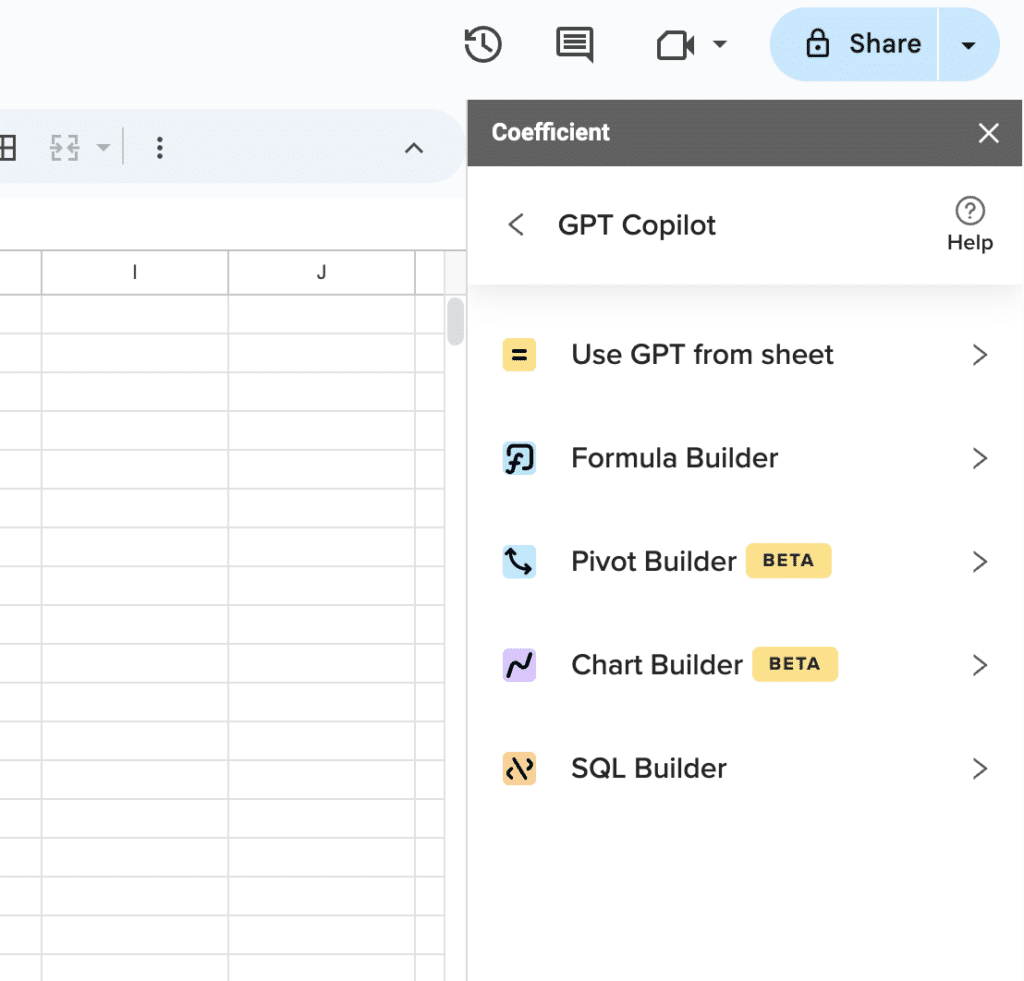
Supercharge your spreadsheets with GPT-powered AI tools for building formulas, charts, pivots, SQL and more. Simple prompts for automatic generation.

‘Content-Type’: ‘application/json’
}
};
var response = UrlFetchApp.fetch(url, options);
var data = JSON.parse(response.getContentText());
var sheet = SpreadsheetApp.getActiveSheet();
// Clear existing data and add new data
sheet.clear();
var headers = Object.keys(data[0]);
sheet.getRange(1, 1, 1, headers.length).setValues([headers]);
var rows = data.map(item => headers.map(header => item[header]));
sheet.getRange(2, 1, rows.length, headers.length).setValues(rows);
}
Step 4. Test your script and handle permissions. Click the play button to run your function for the first time. Google will prompt you to review and approve permissions for the script to access your sheets and make external API calls.
Step 5. Set up automated execution using triggers. Go to the Triggers tab in Apps Script to schedule your function to run automatically. Choose time-based triggers for regular execution (every hour, daily, weekly) so your data updates without manual intervention.
Technical considerations: Apps Script has execution time limits (6 minutes for consumer accounts) and daily quotas for API calls. Complex APIs may require error handling, retry logic, and data chunking for large datasets.
Skip the complexity and start today
Connecting APIs to Google Sheets doesn’t require coding expertise or technical headaches. Coefficient eliminates the complexity while delivering enterprise-grade reliability and real-time data updates. Whether you need simple data imports or complex multi-source dashboards, our visual approach gets you results in minutes instead of hours.Ready to transform your spreadsheets into live data dashboards? Get started with Coefficient today and join thousands of teams who’ve automated their data workflows.