Getting your Freshdesk Posts data into Excel helps you analyze community content and collaborate effectively. Coefficient makes this process seamless and automatic.
Instead of manually exporting data that quickly becomes outdated, you can create a live connection that automatically refreshes.
In this guide, you’ll learn exactly how to import your Freshdesk Posts data into Excel efficiently.
TLDR
-
Step 1:
Step 1. Install Coefficient from the Office Add-ins store and connect to your Freshdesk account.
-
Step 2:
Step 2. Select Import from… and choose the Posts object.
-
Step 3:
Step 3. Configure any filters or columns you need and import the data to your Excel sheet.
-
Step 4:
Step 4. Set up auto-refresh to keep your data updated automatically on your preferred schedule.
Step-by-Step Guide to Importing Freshdesk Posts Data
Here’s how to connect Freshdesk to Excel and pull in your Posts data.
Step 1: Install Coefficient and Connect Freshdesk
First, you need to add Coefficient to your Excel application.
- Open Excel.
- Go to the Insert tab.
- Click “”Get Add-ins””.
- Search for “”Coefficient”” and install it from the Office Add-ins store.
Once installed, open the Coefficient add-in from the Insert tab or the Home tab (depending on your Excel version). You’ll be prompted to connect to your data sources. Select Freshdesk and follow the prompts to authorize Coefficient to access your Freshdesk account.

Step 2: Import Posts Data
With Coefficient connected, you can now pull your Posts data.
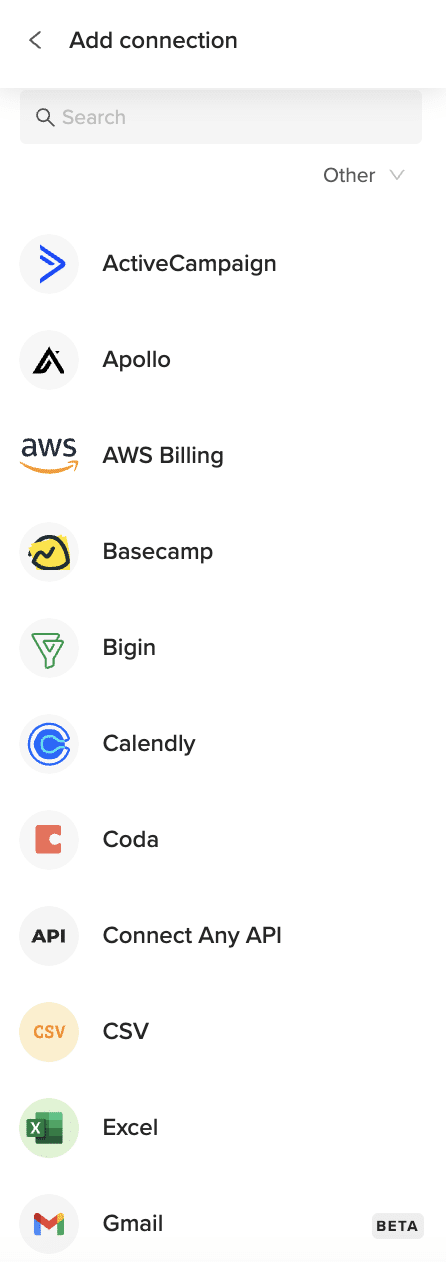
- In the Coefficient sidebar, click “”Import from…””.
- Select Freshdesk from your list of connected sources.
- Choose “”Objects”” as the data type.
- Select “”Posts”” from the list of available objects.
-
- Choose the specific columns (fields) you want to import.
- Apply filters to narrow down the data (e.g., by topic, author, date, etc.).
- Sort the data if needed.
- Click “”Import””.
Your Freshdesk Posts data will load directly into your Excel sheet.
Step 3: Set Up Auto-Refresh (Optional)
To keep your Posts data in Excel always current, set up an auto-refresh schedule.
- In the Coefficient sidebar, find your newly created Freshdesk import.
- Click the “”Refresh”” button options (the clock icon).
- Select “”Set up auto-refresh””.
- Choose your desired frequency (e.g., daily, hourly, weekly) and time.
- Click “”Save””.
Coefficient will now automatically update your Posts data in the background according to your schedule.

Available Freshdesk Objects
- Ticket Fields
- Contacts
- Companies
- Agents
- Groups
- Roles
- Time Entries
- Conversations
- Forum Categories
- Forums
- Topics
- Posts
How to Import Groups Data from Freshdesk into Excel
Getting your Freshdesk Groups data into Excel helps you analyze team structure and collaborate effectively. Coefficient makes this process seamless and automatic.
Instead of manually exporting data that quickly becomes outdated, you can create a live connection that automatically refreshes.
In this guide, you’ll learn exactly how to import your Freshdesk Groups data into Excel efficiently.
TLDR
-
Step 1:
Step 1. Install Coefficient from the Office Add-ins store and connect to your Freshdesk account.
-
Step 2:
Step 2. Select Import from… and choose the Groups object.
-
Step 3:
Step 3. Configure any filters or columns you need and import the data to your Excel sheet.
-
Step 4:
Step 4. Set up auto-refresh to keep your data updated automatically on your preferred schedule.
Step-by-Step Guide to Importing Freshdesk Groups Data
Here’s how to connect Freshdesk to Excel and pull in your Groups data.
Step 1: Install Coefficient and Connect Freshdesk
First, you need to add Coefficient to your Excel application.
- Open Excel.
- Go to the Insert tab.
- Click “”Get Add-ins””.
- Search for “”Coefficient”” and install it from the Office Add-ins store.
Once installed, open the Coefficient add-in from the Insert tab or the Home tab (depending on your Excel version). You’ll be prompted to connect to your data sources. Select Freshdesk and follow the prompts to authorize Coefficient to access your Freshdesk account.
Step 2: Import Groups Data
With Coefficient connected, you can now pull your Groups data.
- In the Coefficient sidebar, click “”Import from…””.
- Select Freshdesk from your list of connected sources.
- Choose “”Objects”” as the data type.
- Select “”Groups”” from the list of available objects.
-
- Choose the specific columns (fields) you want to import.
- Apply filters to narrow down the data if needed.
- Sort the data if needed.
- Click “”Import””.
Your Freshdesk Groups data will load directly into your Excel sheet.
Step 3: Set Up Auto-Refresh (Optional)
To keep your Groups data in Excel always current, set up an auto-refresh schedule.
- In the Coefficient sidebar, find your newly created Freshdesk import.
- Click the “”Refresh”” button options (the clock icon).
- Select “”Set up auto-refresh””.
- Choose your desired frequency (e.g., daily, hourly, weekly) and time.
- Click “”Save””.
Coefficient will now automatically update your Groups data in the background according to your schedule.
Available Freshdesk Objects
- Ticket Fields
- Contacts
- Companies
- Agents
- Groups
- Roles
- Time Entries
- Conversations
- Forum Categories
- Forums
- Topics
- Posts
How to Import Forums Data from Freshdesk into Excel
Getting your Freshdesk Forums data into Excel helps you manage community forums and collaborate effectively. Coefficient makes this process seamless and automatic.
Instead of manually exporting data that quickly becomes outdated, you can create a live connection that automatically refreshes.
In this guide, you’ll learn exactly how to import your Freshdesk Forums data into Excel efficiently.
TLDR
-
Step 1:
Step 1. Install Coefficient from the Office Add-ins store and connect to your Freshdesk account.
-
Step 2:
Step 2. Select Import from… and choose the Forums object.
-
Step 3:
Step 3. Configure any filters or columns you need and import the data to your Excel sheet.
-
Step 4:
Step 4. Set up auto-refresh to keep your data updated automatically on your preferred schedule.
Step-by-Step Guide to Importing Freshdesk Forums Data
Here’s how to connect Freshdesk to Excel and pull in your Forums data.
Step 1: Install Coefficient and Connect Freshdesk
First, you need to add Coefficient to your Excel application.
- Open Excel.
- Go to the Insert tab.
- Click “”Get Add-ins””.
- Search for “”Coefficient”” and install it from the Office Add-ins store.
Once installed, open the Coefficient add-in from the Insert tab or the Home tab (depending on your Excel version). You’ll be prompted to connect to your data sources. Select Freshdesk and follow the prompts to authorize Coefficient to access your Freshdesk account.
Step 2: Import Forums Data
With Coefficient connected, you can now pull your Forums data.
- In the Coefficient sidebar, click “”Import from…””.
- Select Freshdesk from your list of connected sources.
- Choose “”Objects”” as the data type.
- Select “”Forums”” from the list of available objects.
-
- Choose the specific columns (fields) you want to import.
- Apply filters to narrow down the data (e.g., by category, status, etc.).
- Sort the data if needed.
- Click “”Import””.
Your Freshdesk Forums data will load directly into your Excel sheet.
Step 3: Set Up Auto-Refresh (Optional)
To keep your Forums data in Excel always current, set up an auto-refresh schedule.
- In the Coefficient sidebar, find your newly created Freshdesk import.
- Click the “”Refresh”” button options (the clock icon).
- Select “”Set up auto-refresh””.
- Choose your desired frequency (e.g., daily, hourly, weekly) and time.
- Click “”Save””.
Coefficient will now automatically update your Forums data in the background according to your schedule.
Available Freshdesk Objects
- Ticket Fields
- Contacts
- Companies
- Agents
- Groups
- Roles
- Time Entries
- Conversations
- Forum Categories
- Forums
- Topics
- Posts
How to Import Forum Categories Data from Freshdesk into Excel
Getting your Freshdesk Forum Categories data into Excel helps you analyze community structure and collaborate effectively. Coefficient makes this process seamless and automatic.
Instead of manually exporting data that quickly becomes outdated, you can create a live connection that automatically refreshes.
In this guide, you’ll learn exactly how to import your Freshdesk Forum Categories data into Excel efficiently.
TLDR
-
Step 1:
Step 1. Install Coefficient from the Office Add-ins store and connect to your Freshdesk account.
-
Step 2:
Step 2. Select Import from… and choose the Forum Categories object.
-
Step 3:
Step 3. Configure any filters or columns you need and import the data to your Excel sheet.
-
Step 4:
Step 4. Set up auto-refresh to keep your data updated automatically on your preferred schedule.
Step-by-Step Guide to Importing Freshdesk Forum Categories Data
Here’s how to connect Freshdesk to Excel and pull in your Forum Categories data.
Step 1: Install Coefficient and Connect Freshdesk
First, you need to add Coefficient to your Excel application.
- Open Excel.
- Go to the Insert tab.
- Click “”Get Add-ins””.
- Search for “”Coefficient”” and install it from the Office Add-ins store.
Once installed, open the Coefficient add-in from the Insert tab or the Home tab (depending on your Excel version). You’ll be prompted to connect to your data sources. Select Freshdesk and follow the prompts to authorize Coefficient to access your Freshdesk account.
Step 2: Import Forum Categories Data
With Coefficient connected, you can now pull your Forum Categories data.
- In the Coefficient sidebar, click “”Import from…””.
- Select Freshdesk from your list of connected sources.
- Choose “”Objects”” as the data type.
- Select “”Forum Categories”” from the list of available objects.
-
- Choose the specific columns (fields) you want to import.
- Apply filters to narrow down the data if needed.
- Sort the data if needed.
- Click “”Import””.
Your Freshdesk Forum Categories data will load directly into your Excel sheet.
Step 3: Set Up Auto-Refresh (Optional)
To keep your Forum Categories data in Excel always current, set up an auto-refresh schedule.
- In the Coefficient sidebar, find your newly created Freshdesk import.
- Click the “”Refresh”” button options (the clock icon).
- Select “”Set up auto-refresh””.
- Choose your desired frequency (e.g., daily, hourly, weekly) and time.
- Click “”Save””.
Coefficient will now automatically update your Forum Categories data in the background according to your schedule.
Available Freshdesk Objects
- Ticket Fields
- Contacts
- Companies
- Agents
- Groups
- Roles
- Time Entries
- Conversations
- Forum Categories
- Forums
- Topics
- Posts
How to Import Conversations Data from Freshdesk into Excel
Getting your Freshdesk Conversations data into Excel helps you analyze communication history and collaborate effectively. Coefficient makes this process seamless and automatic.
Instead of manually exporting data that quickly becomes outdated, you can create a live connection that automatically refreshes.
In this guide, you’ll learn exactly how to import your Freshdesk Conversations data into Excel efficiently.
TLDR
-
Step 1:
Step 1. Install Coefficient from the Office Add-ins store and connect to your Freshdesk account.
-
Step 2:
Step 2. Select Import from… and choose the Conversations object.
-
Step 3:
Step 3. Configure any filters or columns you need and import the data to your Excel sheet.
-
Step 4:
Step 4. Set up auto-refresh to keep your data updated automatically on your preferred schedule.
Step-by-Step Guide to Importing Freshdesk Conversations Data
Here’s how to connect Freshdesk to Excel and pull in your Conversations data.
Step 1: Install Coefficient and Connect Freshdesk
First, you need to add Coefficient to your Excel application.
- Open Excel.
- Go to the Insert tab.
- Click “”Get Add-ins””.
- Search for “”Coefficient”” and install it from the Office Add-ins store.
Once installed, open the Coefficient add-in from the Insert tab or the Home tab (depending on your Excel version). You’ll be prompted to connect to your data sources. Select Freshdesk and follow the prompts to authorize Coefficient to access your Freshdesk account.
Step 2: Import Conversations Data
With Coefficient connected, you can now pull your Conversations data.
- In the Coefficient sidebar, click “”Import from…””.
- Select Freshdesk from your list of connected sources.
- Choose “”Objects”” as the data type.
- Select “”Conversations”” from the list of available objects.
-
- Choose the specific columns (fields) you want to import.
- Apply filters to narrow down the data (e.g., by ticket, date range, etc.).
- Sort the data if needed.
- Click “”Import””.
Your Freshdesk Conversations data will load directly into your Excel sheet.
Step 3: Set Up Auto-Refresh (Optional)
To keep your Conversations data in Excel always current, set up an auto-refresh schedule.
- In the Coefficient sidebar, find your newly created Freshdesk import.
- Click the “”Refresh”” button options (the clock icon).
- Select “”Set up auto-refresh””.
- Choose your desired frequency (e.g., daily, hourly, weekly) and time.
- Click “”Save””.
Coefficient will now automatically update your Conversations data in the background according to your schedule.
Available Freshdesk Objects
- Ticket Fields
- Contacts
- Companies
- Agents
- Groups
- Roles
- Time Entries
- Conversations
- Forum Categories
- Forums
- Topics
- Posts
How to Import Contacts Data from Freshdesk into Excel
Getting your Freshdesk Contacts data into Excel helps you manage customer information and collaborate effectively. Coefficient makes this process seamless and automatic.
Instead of manually exporting data that quickly becomes outdated, you can create a live connection that automatically refreshes.
In this guide, you’ll learn exactly how to import your Freshdesk Contacts data into Excel efficiently.
TLDR
-
Step 1:
Step 1. Install Coefficient from the Office Add-ins store and connect to your Freshdesk account.
-
Step 2:
Step 2. Select Import from… and choose the Contacts object.
-
Step 3:
Step 3. Configure any filters or columns you need and import the data to your Excel sheet.
-
Step 4:
Step 4. Set up auto-refresh to keep your data updated automatically on your preferred schedule.
Step-by-Step Guide to Importing Freshdesk Contacts Data
Here’s how to connect Freshdesk to Excel and pull in your Contacts data.
Step 1: Install Coefficient and Connect Freshdesk
First, you need to add Coefficient to your Excel application.
- Open Excel.
- Go to the Insert tab.
- Click “”Get Add-ins””.
- Search for “”Coefficient”” and install it from the Office Add-ins store.
Once installed, open the Coefficient add-in from the Insert tab or the Home tab (depending on your Excel version). You’ll be prompted to connect to your data sources. Select Freshdesk and follow the prompts to authorize Coefficient to access your Freshdesk account.
Step 2: Import Contacts Data
With Coefficient connected, you can now pull your Contacts data.
- In the Coefficient sidebar, click “”Import from…””.
- Select Freshdesk from your list of connected sources.
- Choose “”Objects”” as the data type.
- Select “”Contacts”” from the list of available objects.
-
- Choose the specific columns (fields) you want to import.
- Apply filters to narrow down the data (e.g., by company, status, etc.).
- Sort the data if needed.
- Click “”Import””.
Your Freshdesk Contacts data will load directly into your Excel sheet.
Step 3: Set Up Auto-Refresh (Optional)
To keep your Contacts data in Excel always current, set up an auto-refresh schedule.
- In the Coefficient sidebar, find your newly created Freshdesk import.
- Click the “”Refresh”” button options (the clock icon).
- Select “”Set up auto-refresh””.
- Choose your desired frequency (e.g., daily, hourly, weekly) and time.
- Click “”Save””.
Coefficient will now automatically update your Contacts data in the background according to your schedule.
Available Freshdesk Objects
- Ticket Fields
- Contacts
- Companies
- Agents
- Groups
- Roles
- Time Entries
- Conversations
- Forum Categories
- Forums
- Topics
- Posts
How to Import Contact Fields Data from Freshdesk into Excel
Getting your Freshdesk Contact Fields data into Excel helps you analyze contact form structure and collaborate effectively. Coefficient makes this process seamless and automatic.
Instead of manually exporting data that quickly becomes outdated, you can create a live connection that automatically refreshes.
In this guide, you’ll learn exactly how to import your Freshdesk Contact Fields data into Excel efficiently.
TLDR
-
Step 1:
Step 1. Install Coefficient from the Office Add-ins store and connect to your Freshdesk account.
-
Step 2:
Step 2. Select Import from… and choose the Contact Fields object.
-
Step 3:
Step 3. Configure any filters or columns you need and import the data to your Excel sheet.
-
Step 4:
Step 4. Set up auto-refresh to keep your data updated automatically on your preferred schedule.
Step-by-Step Guide to Importing Freshdesk Contact Fields Data
Here’s how to connect Freshdesk to Excel and pull in your Contact Fields data.
Step 1: Install Coefficient and Connect Freshdesk
First, you need to add Coefficient to your Excel application.
- Open Excel.
- Go to the Insert tab.
- Click “”Get Add-ins””.
- Search for “”Coefficient”” and install it from the Office Add-ins store.
Once installed, open the Coefficient add-in from the Insert tab or the Home tab (depending on your Excel version). You’ll be prompted to connect to your data sources. Select Freshdesk and follow the prompts to authorize Coefficient to access your Freshdesk account.
Step 2: Import Contact Fields Data
With Coefficient connected, you can now pull your Contact Fields data.
- In the Coefficient sidebar, click “”Import from…””.
- Select Freshdesk from your list of connected sources.
- Choose “”Objects”” as the data type.
- Select “”Contact Fields”” from the list of available objects.
-
- Choose the specific columns (fields) you want to import.
- Apply filters to narrow down the data if needed.
- Sort the data if needed.
- Click “”Import””.
Your Freshdesk Contact Fields data will load directly into your Excel sheet.
Step 3: Set Up Auto-Refresh (Optional)
To keep your Contact Fields data in Excel always current, set up an auto-refresh schedule.
- In the Coefficient sidebar, find your newly created Freshdesk import.
- Click the “”Refresh”” button options (the clock icon).
- Select “”Set up auto-refresh””.
- Choose your desired frequency (e.g., daily, hourly, weekly) and time.
- Click “”Save””.
Coefficient will now automatically update your Contact Fields data in the background according to your schedule.
Available Freshdesk Objects
- Ticket Fields
- Contacts
- Companies
- Agents
- Groups
- Roles
- Time Entries
- Conversations
- Forum Categories
- Forums
- Topics
- Posts
How to Import Contacts Data from Freshdesk into Excel
Getting your Freshdesk Contacts data into Excel helps you manage customer information and collaborate effectively. Coefficient makes this process seamless and automatic.
Instead of manually exporting data that quickly becomes outdated, you can create a live connection that automatically refreshes.
In this guide, you’ll learn exactly how to import your Freshdesk Contacts data into Excel efficiently.
TLDR
-
Step 1:
Step 1. Install Coefficient from the Office Add-ins store and connect to your Freshdesk account.
-
Step 2:
Step 2. Select Import from… and choose the Contacts object.
-
Step 3:
Step 3. Configure any filters or columns you need and import the data to your Excel sheet.
-
Step 4:
Step 4. Set up auto-refresh to keep your data updated automatically on your preferred schedule.
Step-by-Step Guide to Importing Freshdesk Contacts Data
Here’s how to connect Freshdesk to Excel and pull in your Contacts data.
Step 1: Install Coefficient and Connect Freshdesk
First, you need to add Coefficient to your Excel application.
- Open Excel.
- Go to the Insert tab.
- Click “”Get Add-ins””.
- Search for “”Coefficient”” and install it from the Office Add-ins store.
Once installed, open the Coefficient add-in from the Insert tab or the Home tab (depending on your Excel version). You’ll be prompted to connect to your data sources. Select Freshdesk and follow the prompts to authorize Coefficient to access your Freshdesk account.
Step 2: Import Contacts Data
With Coefficient connected, you can now pull your Contacts data.
- In the Coefficient sidebar, click “”Import from…””.
- Select Freshdesk from your list of connected sources.
- Choose “”Objects”” as the data type.
- Select “”Contacts”” from the list of available objects.
-
- Choose the specific columns (fields) you want to import.
- Apply filters to narrow down the data (e.g., by company, status, etc.).
- Sort the data if needed.
- Click “”Import””.
Your Freshdesk Contacts data will load directly into your Excel sheet.
Step 3: Set Up Auto-Refresh (Optional)
To keep your Contacts data in Excel always current, set up an auto-refresh schedule.
- In the Coefficient sidebar, find your newly created Freshdesk import.
- Click the “”Refresh”” button options (the clock icon).
- Select “”Set up auto-refresh””.
- Choose your desired frequency (e.g., daily, hourly, weekly) and time.
- Click “”Save””.
Coefficient will now automatically update your Contacts data in the background according to your schedule.
Available Freshdesk Objects
- Ticket Fields
- Contacts
- Companies
- Agents
- Groups
- Roles
- Time Entries
- Conversations
- Forum Categories
- Forums
- Topics
- Posts
How to Import Company Fields Data from Freshdesk into Excel
Getting your Freshdesk Company Fields data into Excel helps you analyze company form structure and collaborate effectively. Coefficient makes this process seamless and automatic.
Instead of manually exporting data that quickly becomes outdated, you can create a live connection that automatically refreshes.
In this guide, you’ll learn exactly how to import your Freshdesk Company Fields data into Excel efficiently.
TLDR
-
Step 1:
Step 1. Install Coefficient from the Office Add-ins store and connect to your Freshdesk account.
-
Step 2:
Step 2. Select Import from… and choose the Company Fields object.
-
Step 3:
Step 3. Configure any filters or columns you need and import the data to your Excel sheet.
-
Step 4:
Step 4. Set up auto-refresh to keep your data updated automatically on your preferred schedule.
Step-by-Step Guide to Importing Freshdesk Company Fields Data
Here’s how to connect Freshdesk to Excel and pull in your Company Fields data.
Step 1: Install Coefficient and Connect Freshdesk
First, you need to add Coefficient to your Excel application.
- Open Excel.
- Go to the Insert tab.
- Click “”Get Add-ins””.
- Search for “”Coefficient”” and install it from the Office Add-ins store.
Once installed, open the Coefficient add-in from the Insert tab or the Home tab (depending on your Excel version). You’ll be prompted to connect to your data sources. Select Freshdesk and follow the prompts to authorize Coefficient to access your Freshdesk account.
Step 2: Import Company Fields Data
With Coefficient connected, you can now pull your Company Fields data.
- In the Coefficient sidebar, click “”Import from…””.
- Select Freshdesk from your list of connected sources.
- Choose “”Objects”” as the data type.
- Select “”Company Fields”” from the list of available objects.
-
- Choose the specific columns (fields) you want to import.
- Apply filters to narrow down the data if needed.
- Sort the data if needed.
- Click “”Import””.
Your Freshdesk Company Fields data will load directly into your Excel sheet.
Step 3: Set Up Auto-Refresh (Optional)
To keep your Company Fields data in Excel always current, set up an auto-refresh schedule.
- In the Coefficient sidebar, find your newly created Freshdesk import.
- Click the “”Refresh”” button options (the clock icon).
- Select “”Set up auto-refresh””.
- Choose your desired frequency (e.g., daily, hourly, weekly) and time.
- Click “”Save””.
Coefficient will now automatically update your Company Fields data in the background according to your schedule.
Available Freshdesk Objects
- Ticket Fields
- Contacts
- Companies
- Agents
- Groups
- Roles
- Time Entries
- Conversations
- Forum Categories
- Forums
- Topics
- Posts
How to Import Companies Data from Freshdesk into Excel
Getting your Freshdesk Companies data into Excel helps you manage account information and collaborate effectively. Coefficient makes this process seamless and automatic.
Instead of manually exporting data that quickly becomes outdated, you can create a live connection that automatically refreshes.
In this guide, you’ll learn exactly how to import your Freshdesk Companies data into Excel efficiently.
TLDR
-
Step 1:
Step 1. Install Coefficient from the Office Add-ins store and connect to your Freshdesk account.
-
Step 2:
Step 2. Select Import from… and choose the Companies object.
-
Step 3:
Step 3. Configure any filters or columns you need and import the data to your Excel sheet.
-
Step 4:
Step 4. Set up auto-refresh to keep your data updated automatically on your preferred schedule.
Step-by-Step Guide to Importing Freshdesk Companies Data
Here’s how to connect Freshdesk to Excel and pull in your Companies data.
Step 1: Install Coefficient and Connect Freshdesk
First, you need to add Coefficient to your Excel application.
- Open Excel.
- Go to the Insert tab.
- Click “”Get Add-ins””.
- Search for “”Coefficient”” and install it from the Office Add-ins store.
Once installed, open the Coefficient add-in from the Insert tab or the Home tab (depending on your Excel version). You’ll be prompted to connect to your data sources. Select Freshdesk and follow the prompts to authorize Coefficient to access your Freshdesk account.
Step 2: Import Companies Data
With Coefficient connected, you can now pull your Companies data.
- In the Coefficient sidebar, click “”Import from…””.
- Select Freshdesk from your list of connected sources.
- Choose “”Objects”” as the data type.
- Select “”Companies”” from the list of available objects.
-
- Choose the specific columns (fields) you want to import.
- Apply filters to narrow down the data (e.g., by industry, status, etc.).
- Sort the data if needed.
- Click “”Import””.
Your Freshdesk Companies data will load directly into your Excel sheet.
Step 3: Set Up Auto-Refresh (Optional)
To keep your Companies data in Excel always current, set up an auto-refresh schedule.
- In the Coefficient sidebar, find your newly created Freshdesk import.
- Click the “”Refresh”” button options (the clock icon).
- Select “”Set up auto-refresh””.
- Choose your desired frequency (e.g., daily, hourly, weekly) and time.
- Click “”Save””.
Coefficient will now automatically update your Companies data in the background according to your schedule.
Available Freshdesk Objects
- Ticket Fields
- Contacts
- Companies
- Agents
- Groups
- Roles
- Time Entries
- Conversations
- Forum Categories
- Forums
- Topics
- Posts