Importing Refunds from Square into Excel helps you monitor refund trends and manage customer returns.
This guide covers importing your Refunds object with Coefficient and setting up auto-refresh.
TLDR
-
Step 1:
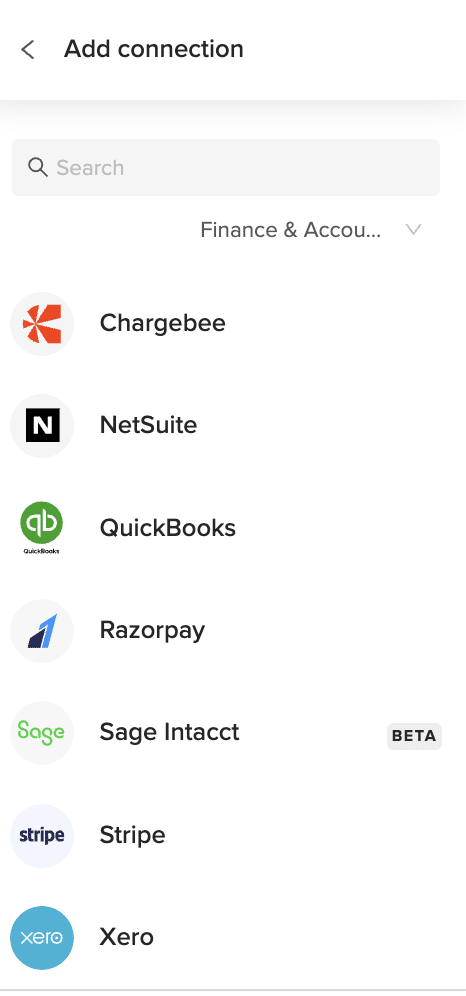
Install Coefficient, connect Square.
-
Step 2:
Select “Import from Objects” → “Refunds.”
-
Step 3:
Click “Import,” verify columns.
-
Step 4:
Enable auto-refresh if needed.
Step-by-Step Guide


What Square Data is Imported?
- Disputes
- Bank Accounts
- Gift Cards
- Merchants
- Locations
- Payments
- Invoices
- Payouts
- Customers
- Refunds